Visibility > Show “other Kinematic and Sketch elements” (Global Switch)
To control the visibility of kinematic and sketch-elements in other Mechanism-Editors in the graphics-area of the active Mechanism-Editor.
Use this “Global Switch” together with “Local Switches” (Light-Bulbs) in each Mechanism name-tab.
Global Switch
Toggle between two states.
This switch must “on” to see any kinematic and sketch-elements from other Mechanism-Editors.
|
Visibility toolbar > Show other Kinematic and Sketch elements |
|
Visibility toolbar > Hide other Kinematic and Sketch elements |


Local Switch for each Mechanism-Editor
Toggle between two states.
There is a “Light-bulb” icon in each Mechanism name-tab. The Light-bulb of a Mechanism-Editor must be ON to show its kinematic and sketch-elements from a different Mechanism-Editors. |
||
|
Mechanism name-tab : Light-bulb is ON |
|
|
Mechanism name-tab : Light-bulb is OFF |
|
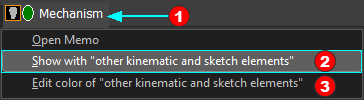 |
||
To turn a Light-bulb to on 1.Right-click the Mechanism name-tab In the shortcut menu: 2.Click Show with "other kinematic and sketch elements" Note:
|
||


Example
Visibility when Global-Switch is OFF
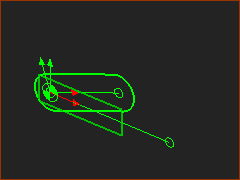 Kinematic and sketch-elements in active Mechanism-Editor ONLY. |
Visibility toolbar (or menu) > Show “other Kinematic and Sketch elements” is OFF |
Visibility when Global-Switch is ON and the Light-Bulbs of other Mechanism-Editor tabs are ON
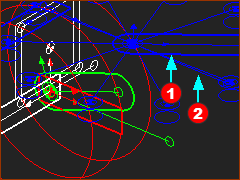 Kinematic and sketch-elements in the active and other Mechanism-Editors. The Kinematic and Sketch-Elements of other Mechanism-Editors when their Light-Bulbs are also ON. |
You can control the color of the elements in each Mechanism-Editor with the shortcut menu when you you right-click the Mechanism name-tab. In the example above, there are three colors. •Green is always the color of elements that are kinematically-defined in the active Mechanism-Editor - as defined in the Application-Settings •Blue and Red are the colors you have selected for the elements that are in other Mechanism-Editors |

TOP-TIP :
When you “show other kinematic and sketch-elements” in other Mechanism-Editors, you can use you mouse-pointer to: Identify Parts •Single-Click a Part-Outline (or Joint, or CAD-Line) to identify (in the Selection-Window and Assembly-Tree) the name of the Part (or Joint, or CAD-Line) and the Mechanism-Editor to which it is a child. •Single-Click a sketch-element to identify, in the Selection-Window, the name of the sketch-element and the Part to which the sketch-element is a child. Jump to a different Mechanism-Editor •Double-Click a Part-Outline or sketch-element to jump to the Mechanism-Editor in which the Part or sketch-element is a child. |