What does this tool do?
You can use the Extrusion dialog to show or hide an Extrusion element.
Also, you can use this tool as a shortcut to show or hide an Extrusion.
See
To see Extrusions in the graphics-area, you must enable:
•Visibility toolbar > Show Solids in Mechanisms
Show-Hide Extrusion

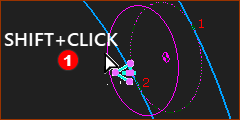 SHIFT-CLICK Profile |
You can see the Profile in the graphics-area and you want to show the Extrusion. STEP 1: In the graphics-area
The Profile and Extrusion show in the Selection-Window. |
||||
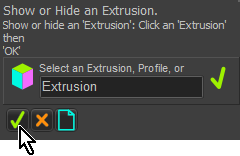 Command-Manager |
STEP 2: Use the Show-Hide Extrusion command
Now, you can see the Extrusion |
||||


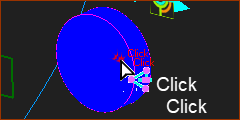 Double-click Extrusion |
You can see the Extrusion and you want to hide it. STEP 1:In the graphics-area
|
||||
Command-Manager |
STEP 1:Use the Show-Hide Extrusion command
Now, you cannot see the Extrusion |
||||
Other method to change the visibility of an Extrusion
1.SHIFT + Click a Profile contour in the graphics-area. The Extrusion shows in the Selection-Window 2.Right-click the Extrusion In the shortcut menu 3.Select Show or Hide Solid Elements |