Why add a Force-Data FB?
See also: Force-Data FB dialog
Use a Force-Data FB to measure, over a machine-cycle, the force* that acts ON a Point** at a Force element***. Use a Graph FB to plot the force* over a machine-cycle. * Kinetostatic Force or Torque data ** Point, start-Point, end-Point *** Force elements are: Pin-Joints, Slide-Joints, 2D-Cams, Springs, and pulleys. |
See also:
Kinetostatic Forces are those forces that arise when Parts with mass and mass moment of inertia move with a prescribed motion or a Spring acts between Points that are internal and external to the kinematic-chain. The moving Parts and the machine frame are perfectly rigid, there is no backlash in the joints, and the prescribed motion is followed perfectly.
In MechDesigner, “Dynamics” relates to the motions and forces in Parts that have a vibrational response to a prescribed motion - see Dynamics for Dynamic Forces and Torques.
Add (and Edit) a Force-Data FB
 Force-Data FB in graphic-area |
STEP 1: Add the Force-Data FB to the graphics-area.
The Force-Data FB is now in the graphics-area. |
||||
 Doube-click to edit Force-Data FB |
STEP 2.Open the Force-Data FB dialog
|
||||
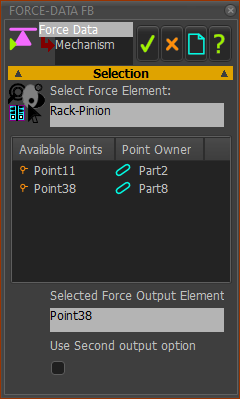 Force-Data FB dialog |
STEP 3.Link the Force-Data FB to a Force-Element and a Point A.Select a Force-Element Force-elements: Pin-Joint, Slide-Joint, 2D-Cam, Spring, Pulley, Rack-Pinion,
A list of Available Points shows in the box below. B.Select a Point in the box of Available Points
C.Complete the command
|
||||

 to close the