The Power Source?
When you want to measure and plot Forces* at a joints contact between Cam and Follower Profile, contact at gear-teeth, ... , you must make sure the “power-source” is the “correct Force element” for each degree-of-freedom in a kinematic-chain. Force elements are: Pin-Joints, Slide-Joints, 2D-Cams, Springs, and pulleys. Each degree-of-freedom in a kinematic-chain has one Force element that can also be the Power-Source. Which is the “correct Force element”? The correct Force element in the MechDesigner model should be at the same joint or machine-element as your actual machine. For example, if in your machine a Servo-motor drives a camshaft, the correct Force element is the Pin-Joint at the center of the 2D-Cam. If a 2D-Cam drives a kinematic-chain, the correct Force element is the 2D-Cam. When the power-source is not the correct Force element, the Forces and Torques we calculate will not be those Forces you need to size your bearings, materials, motors, ... . In the default case, the power-source is a Rotary Motor or Linear Motor at the joint whose motion you control with a Motion-Dimension FB. Frequently, the motor is not at the joint with the Motion-Dimension. For example, a 2D-Cam can be the power-source to move a kinematic-chain of a Follower. When the power-source for a degree-of-freedom is not the correct element, you must use the Configure Power Source dialog to move it to the correct element. * Force is the generic term we use for Forces and Torques. |
To identify the Power-Source
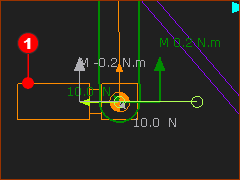 |
In the default case, the Power-Source is at the joint whose position and motion you control with a Motion-Dimension FB. A Motor-Symbol To see the Motor-Symbol, toggle on: |

To open the Configure Power-Source dialog
There are two methods to open the Configure Power-Source dialog.
METHOD 1 - with the shortcut menu or keyboard
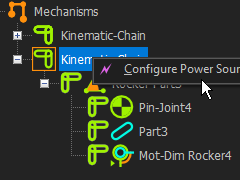 Configure Power Source from Kinematics-Tree |
1.Click the Kinematics-Tree in the Element-Explorer 2.Click the “Kinematic-Chain” for which you want to control the Power-Source. The text “Kinematic-Chain” should be Blue. 3.Right-click “Kinematic-Chain” in the Kinematics-Tree 4.Click Configure Power Source in the shortcut menu (see image, left) OR When “Kinematic-Chain” is Blue. 3.Press the ALT+P keyboard shortcut |
The Configure Power Source dialog is now open. |
|
METHOD 2 - with the command icon
|
In the Kinematics-Tree: 1.Click the Kinematics-Tree in the Element-Explorer 2.Click the Kinematic-Chain The Kinematic-Chain should be Blue. 3.Click Forces toolbar > Configure Power Source icon. or 3.Forces menu > Configure Power Source |
The Configure Power Source dialog is now open. |
|
