Edit an element - to open the element's dialog
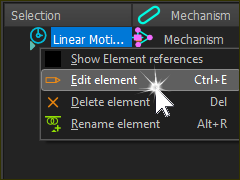
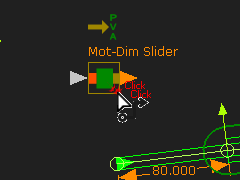
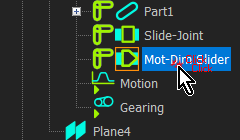
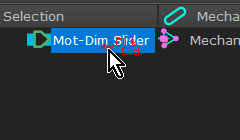
You can select and open a dialog from three places. The:
It may be helpful to use a Selection-Filter to filter for the type of element you want to edit.
How to open a dialog:
Do one of these methods:

|
Summary:
|
Summary:
|
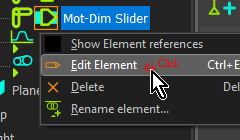
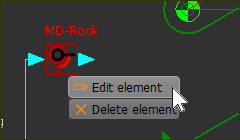
|
You must pre-select the element you want to edit. 1.Click the element you want to edit in the Selection-Window, Assembly-Tree or graphics-area 2.Click Edit toolbar > Edit Element icon |
|
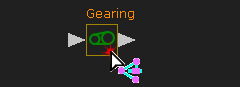 Click element in Graphic-Area 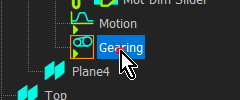 Click element in Assembly-Tree |
For example: To edit a Gearing FB: 1.Click the Gearing FB in the Selection-Window or 1.Click the Gearing FB in the graphics-area or 1.Click the Gearing FB in the Assembly-Tree |
|
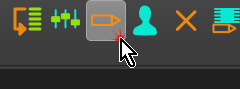 Click 'Edit-Element' icon in Edit menu |
Then 2.Click Edit toolbar > Edit Element The Gearing-FB dialog is now open. |
|

Special Cases:
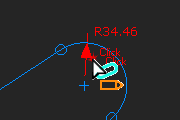 Double-click Arrowhead |
1.Make sure you deselect all other commands. Frequently, Add Dimension is the active command. You must deselect it. E.g Click the ESC key on your keyboard. 2.Double-Click the arrowhead of a dimension to open the Dimension dialog You will not edit the dimension If you try to click the dimension number - R34.46 in the image to the left |
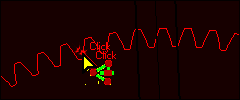 |
When you click a Gear-Pair (or 2D-Cam), it is possible to also click these elements, if you have added them to the Gear-Pair (or 2D-Cam): •a Polyline - you can only add or update the shape of a Polyline - see Add/Update Polyline •a Profile and Extrusion - you can only edit the Extrusion - see Edit Extrusion |
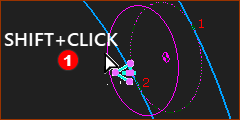 Shift-click a Profile |
To edit an Extrusion that you cannot see, but you can see its Profile or Auto-Profile. 1.SHIFT-CLICK the PINK Profile element The Profile AND Extrusion elements are now in the Selection-Window. 2.Right-click the Extrusion element in the Selection-Window 3.Click Edit element in the shortcut menu. |
You cannot edit an element when: •a different dialog is open. Close all other dialogs. (ALT+F4 if you cannot see the dialog). •you double-click two or more elements. •a command is active, in the Command-Manager. You must complete or cancel that command. Click the ESC key on your keyboard. •it is not possible to edit the element - for example, a Line. |