CAD-Line > SOLIDWORKS tab
Use the CAD-Line dialog > SOLIDWORKS tab to:
•Import one SolidWorks Part/Assembly document ( SOLIDWORKS refers to their CAD files as "documents" ) * onto a CAD-Line •Control the surface accuracy of the CAD-Solid** with the Angular Deviation and Linear Deviation parameters •Remove a SOLIDWORKS document from the CAD-Line •Reopen the SOLIDWORKS document in SOLIDWORKS that you have previously imported onto the CAD-Line •Rename the CAD-Line to the name of the SOLIDWORKS document * SOLIDWORKS refers their Part, Assembly, and Drawing files as "documents" ** Cad-Solid is the name we use for a CAD model that you have imported onto the CAD-Line with the CAD-Line dialog |
Before you import a SolidWorks Part/Assembly document:
•Make sure it is the active document in SOLIDWORKS •Make sure it has a file-name •Usually, it has a Coordinate-System feature that you want to align with the CAD-Line X-Y-Z axes. •Usually, it is simplified, to reduce its complexity, and the size of the CAD-Solid in MechDesigner. Warning: The SOLIDWORKS document does not import into MechDesigner if in SOLIDWORKS you use a Chinese Traditional font to name a Configuration. You must rename the Configuration in SOLIDWORKS with a Western font. |
CAD-Line dialog
SOLIDWORKS tab
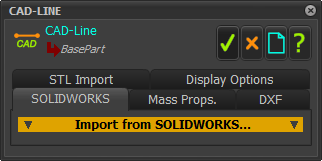
CAD-Line dialog> SOLIDWORKS tab
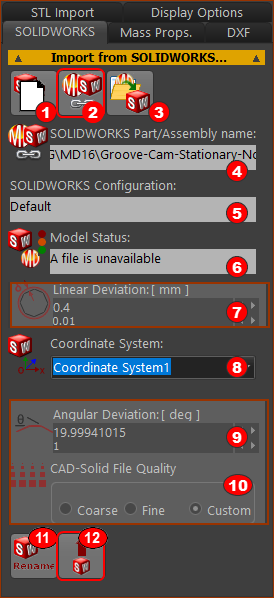 CAD-Line dialog > SOLIDWORKS tab |
STEP 1: Click the Read WAIT until a: •SolidWorks® Part/Assembly name (read-only) shows in box •SolidWorks Configuration (read-only) shows in box •SolidWorks Coordinate System shows in box •Model Status (read-only) shows in box
STEP 2: If there is more than one Coordinate-System, select a Coordinate-System STEP 3: Click the Import Wait - a large model will take more time to import. When the model is in MechDesigner, we show the Solids in Mechanism-Editors.
|
||
Optional Buttons(
CAD-Solid File Quality
|
|||


