BLEND-POINT EDITOR : X-axis Values
When you edit the X-axis value of a Blend-Point, you change the Segment-Width of the Previous-Segment and the Selected-Segment.
You do NOT change the Motion-Width.
Please read : Warning - “Bumping” Blend-Points.
X-axis Values
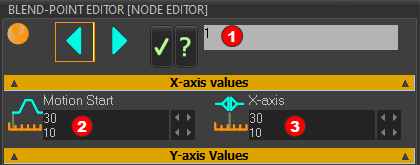 X-axis values of Blend-Point #3 |
|||
Motion Start
X-axis
Note:
|


Special Case
X-axis value of Blend-Point #1
Blend-Point #1 •Edit Motion-Start to edit the X-axis value of Blend-Point #1. However:
|
“Bumping” Blend-Points !
If you edit the X-axis value of a Blend-Point and it bumps into an adjacent Blend-Point (left or right): •the active Blend-Point AND the adjacent Blend-Point move together along the X-axis. •AND the Segment-Width of the Previous-Segment (or Next-Segment) will be very short (e.g. 0.0000036 degrees) and the short Segment is invisible to you in the motion plots. •AND the Motion-Width will increase by a small amount (e.g. the Motion-Width increase to 360.0000036 degrees). You can only use the Segment Editor to edit the Motion-Width. You must edit the Segment-Width of at least one segment. |
EXAMPLE:
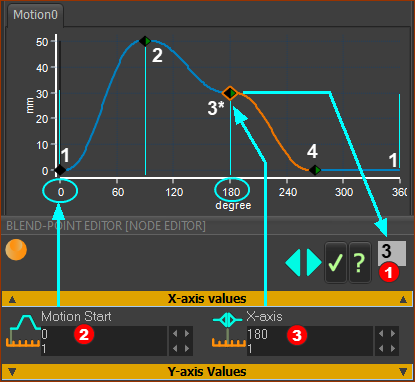 Motion-Start and X-axis Value of Blend-Point #3 |
Blend-Point Number The number of the active Blend-Point at the start of the Selected-Segment. In the image, the Blend-Point number is #3 X-axis values
Motion Start is at 0 degrees.
X-axis value of Blend-Point #3 is 180 degrees. As you edit the X-axis value of Blend-Point #3, it moves to the left(<) or to the right(>). Also, be careful that you do not “bump” the Blend-Point into a Blend-Point to its left of right. For “bumping”, see WARNING, above. See also: How to edit a value in a data-box. |
