View
Use the commands in the View menu and View toolbar to control how to display the graphics area.
View menu
When you show menus, the View menu is at the top.
Use the View menu to help you manipulate and control how to display the graphics-area.

View menu - MD17
Note:
MD17: Visibility toolbar > Orthonormal or Perspective has now moved to the View menu.
View toolbar
When you show toolbars, the View toolbar is BELOW the graphics-area.
Use the View menu to help you manipulate and control how to display the graphics-area.
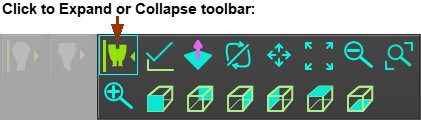
View toolbar
View toolbar - more details
 View from the: Front ; Back ; Left ; Right ; Top ; Bottom Front-View is the XY-Plane of the active Mechanism-Editor Press F3 on your keyboard as the short-cut key for the Front-View. |
|
|
View Align •Part-Editor : Click View Align to rotate the Part so that the X-axis is horizontal •Mechanism-Editor : Click View Align to rotate the Base-Part so that the X-axis is horizontal. |
|
View Normal to a Plane To make the view normal(⊥) to a Plane: 1.Click View Normal to Plane 2.Click a Plane 3.Click |
|
SPIN Spin button + Drag in the graphics-area Shortcut SHIFT + Drag in the graphics-area Shortcuts and keyboard arrow-keys (see notes also): 10º Spin : LEFT / RIGHT and UP / DOWN keyboard arrow-keys 30º Spin : CTRL + LEFT / RIGHT and UP / DOWN keyboard arrow-keys 90º Spin : SHIFT + LEFT / RIGHT and UP / DOWN keyboard arrows-keys Notes for shortcut: Your mouse-pointer must be in the graphics-area before you drag your mouse. Your mouse-pointer cannot hover above an element before you drag your mouse. |
|
PAN Pan button + Drag in the graphics-area Shortcut (see notes also): CTRL + Drag in the graphics-area Notes for shortcut: Your mouse-pointer must be in the graphics-area (for example, not on the Assembly-Tree) Your mouse-pointer cannot hover above an element before you drag your mouse. |
|
Zoom Extents To display all of the elements in the active Mechanism-Editor If all of model does not show, do Front-View(F3), then Zoom-Extents. |
|
Zoom In SHORTCUT: Mouse Wheel: Zoom in/out at your mouse position. |
|
Zoom Out SHORTCUT: Mouse-Wheel: Zoom in/out at your mouse position. |
|
Zoom Windows With your mouse, drag a window as the extents of the new model view. |


