What does the Auto-Layer command do?
The Auto-Layer command moves Extrusions along the Z-axis so that they do not collide with each other when you cycle the model. The Auto-Layer command edits by different values the Extrusion-Offset and Part-Offset parameters in Extrusion dialog. The Auto-Layer command should save you time. However, Auto-Layer is not perfect! If, after you use Auto-Layer, there are Extrusions that do collide, you must edit manually the Extrusion-Offset and Part-Offset parameters. Warning: Auto-Layer is not a toggle - the offset distances do not undo if you click Auto-Layer again. |
Note:
Before you do Auto-Layer, you usually add Auto-Profiles and/or Profiles. See: •MD-Solids menu > Auto-Profile (all Parts) •MD-Solids menu > Auto-Profile (Part) To see MD-Solids in the graphics area: •Enable Visibility menu > Show Solids in Mechanisms |
Auto-Layer
Warning: Auto-Layer is not a toggle - the offset distances do not undo if you click Auto-Layer again.
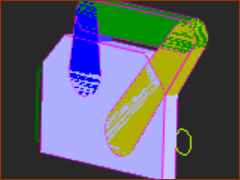 Before 'Auto-Layer' 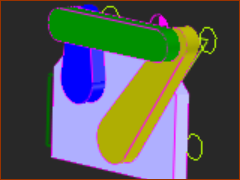 After 'Auto-Layer' |
||
STEP 1:Do the Auto-Layer command.
|

Video:

Auto-Layer