Start MechDesigner
•1: General menus and toolbars
•2: Model-Editor, Mechanism-Editor, Part-Editor
•5: MotionDesigner: Link a Motion to a Part
After installation, the first time you start MechDesigner.
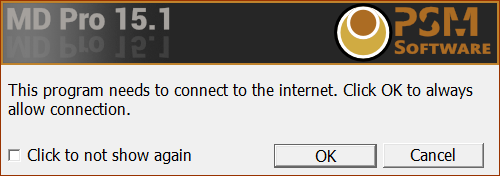 Allow Internet Access |
First time starting MechDesigner. CopyMinder License Key You may need to click “OK” in a pop-up to give MechDesigner permission to check the status of your license key with the CopyMinder servers. This check is made every week. If you do not, MechDesigner may not start. Select a Theme You must select a “Theme” the first time you start MechDesigner, These tutorials use the Charcoal Dark Slate theme. Therefore, if you are doing these Tutorials, we recommend you select the Charcoal Dark Slate. Notes:
|
|
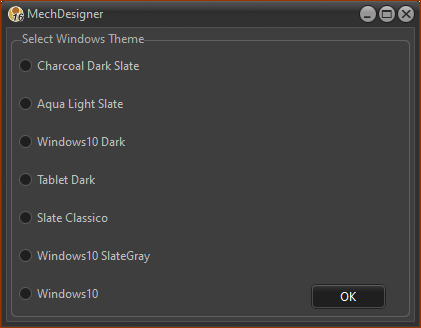 Select a Theme |
User Interface
|
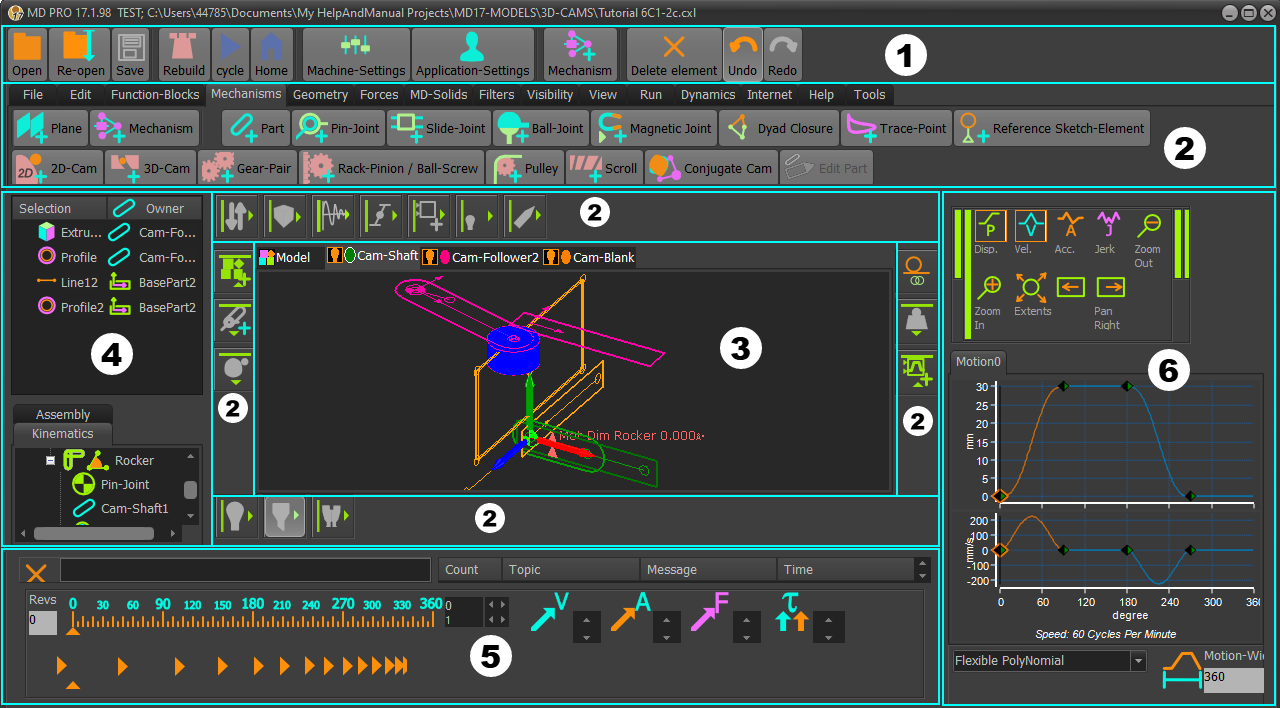
Shortcut toolbar (MD17+)Shortcut toolbar for the tools and commands you will frequently use. |
|
Main menu-bar & General toolbarsYou can show Menus only, Toolbars only, or Menus and Toolbars - see Application-Settings The Menus and the “General toolbars” are above the graphics-area. The General toolbars are always available. All toolbars are collapsed when you start MechDesigner. See more: Menus and Toolbars |
|
Model-Editor, Mechanism-Editor, or Part-EditorEditor-types and names Model-Editor: to add Planes, Mechanisms, to view the motion of Solids (3D-elements), ... Mechanism-Editor: to build kinematic-chains with Parts, Joints, belts, gears, cams, ... Part-Editor: to edit the length of a Part, to add Points or Lines to locate joints made with a Part, to add shapes for Extrusions, ... Workspace Graphics-Area: the main workspace where you add elements to build your model Name-tab: to identify the active editor - you can rename the Model-Editor and Mechanism-Editors Contextual toolbars: toolbars that are contextual to each editor-type: to the left and right, the graphics-area |
|
Project-ExplorerThe Project-Explorer is to the left of the graphics-area. It has three areas: Selection-Window (top) Command-Manager (middle) Element-Explorer with two tabs (bottom) Use the Selection-Window and Element-Explorer to select, edit, rename or delete elements. Use the Command-Manager to do commands. See more: Project-Explorer |
|
Feedback-AreaThe Feedback-Area is below the graphics-area. It includes: •Hint (read-only) - each command has a hint, which you can read when your mouse-pointer is above command icon. •Messages (read-only) - for example, a reason you cannot do a command •Master Machine Angle and Animation-Speed sliders •Vector Scale Buttons: to change the scale of Kinematic and Kinetostatic (Force) Vectors See more: Feedback-Area |
|
MotionDesignerMotionDesigner is docked to the right when you start MechDesigner. You can float and dock MotionDesigner with Visibility menu or toolbar > Dock / Float MotionDesigner MotionDesigner has its own toolbars. •Design an unlimited number of motions, with an unlimited number of segments Use a Motion FB In MechDesigner to link a motion in MotionDesigner to a Motion-Part and/or Motion-Point. See more: MotionDesigner and Getting Started Tutorials - MotionDesigner |
Memo-pad - not shown in the image.A Memo-pad opens each time you start MechDesigner, unless you clear the Automatically Open at Start check-box at the bottom of the Memo dialog. See more: Memo |
|


