Help while you use MechDesigner.
Help is available from::
•Local Help - access with F1
•Tool-Tips (in the Feedback Area)
• http://mechdesigner.support (you are here)
•Tutorial Videos - see Help menu
Local help
Reference Help:
It is always a good idea to download the latest reference help from our website.
You MUST run MechDesigner as an Administrator. 1.Right-click MechDesigner in the Start menu, taskbar, or desktop 2.Click Run as Administrator After MechDesigner opens: 3.Click Help menu > Download Latest Help... 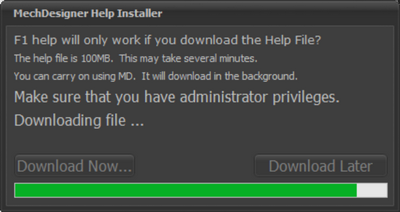 Click 'Download Now' to install the Local Help 4.Click the Download Now button. 5.Check the Feedback-Area > Messages •If the message is: “Failed to Create: C:\ProgramData\PSMotion\Help\MechDesigner.chm”, then see Permissions •If the progress-bar under the Download Now button is making progress, then please wait until you see the message: “Download Successful”. |
Command Help:
 Help for a command |
Use the F1 key on your keyboard to open the local-help for a command:
|
Dialog Help:
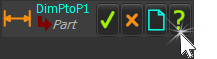 |
To edit an element's parameters (e.g. change the value of a Dimension), you open the element's dialog (Dimension dialog). Each type of element has the same dialog format. Only the parameters are different, of course. |
|
There is a mini-toolbar with four icons at the top of each dialog.
|
||


Parameter-Help:
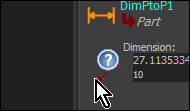 Help for a parameter |
Dialogs have Parameters whose values control the element. If there is an icon to the left of the parameter's data-box
|

Tool-Tips
To Enable Tool-Tips:
To see a Tool-Tip:
|
 VIDEO: Contextual Help for Commands, Dialogs, and Parameters
Getting Help from within the Mechdesigner Application. |

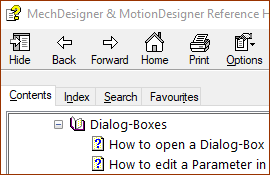 Contents tab |
Below the Quick access toolbar, there are four(4) tabs above the help topics. Contents (default):
|
|
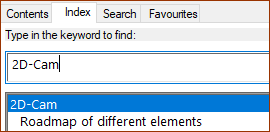 Index tab |
Index:
|
|
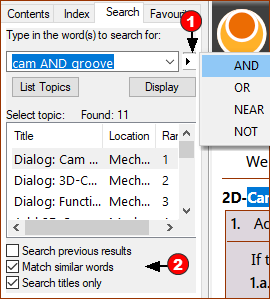 Search tab |
Search:
|


You may need to ask your I.T. department for these Windows© permissions on your computer. A)Do you have permission to see <CommonAppData > \Help\
B)Do you have permission to download the local-help file ?
|