MotionDesigner Terminology:
A Motion
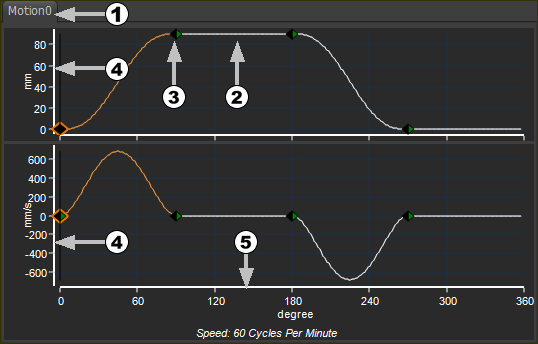 Default Position and Velocity Graphs in Motion-Designer |
When you start MechDesigner, you will see the default motion in MotionDesigner. Each motion has Motion name-tab You can show or hide the plots for the motion-derivatives: Position, Velocity, Acceleration, and/or Jerk. The lowest motion-derivative is at the top, with increasing motion-derivatives below. The image above shows the plot for Position at the top and Velocity below. Each motion is split into Segments We calculate the motion-values with a mathematical function taken from the Motion-Law that you select for each Segment. You do not need to know any Math. Each segment begins and ends with a Blend-Point (or Node) The Y-axis values and Units are to the left of the plot of each motion-derivative The X-axis values and Units are below the bottom plot Below the X-axis units, we show the Machine Speed in Cycle per Minute. The machine-speed is taken from MechDesigner, in the Machine Settings dialog. |


Segments
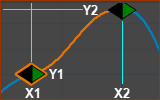 1x Segment: from X1 to X2 |
The default motion has four segments. You can split each Segments to give more Segments, and you can delete Segments to give less segments. Each Segment has a Segment-Width. Segments join together, end-to-end (they concatenate), to create a motion, over one machine-cycle of (usually) 360º. You must select a Motion-Law for each Segment with the Motion-Law Selector. The mathematical-function of the Motion-Law, together with the motion-values at its start and end, control the shape of the Segment. Segment-Editor The Segment Editor edits the Selected-Segment. You can use the Segment-Editor to edit the: •Segment-Width (X2 – X1) •motion-value Y1 at X1 •motion-value Y2 at X2 •Motion-Law The Motion-Law controls if you can control: •motion-values Y1 and Y2 of one or all of its motion-derivatives: P, V, A, J. •Segment-Parameters ( not all Motion-Laws ) •Segment Range ( not all Motion-Laws ) |
Blend-Points
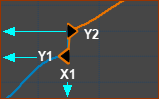 A Blend-Point: at X1 |
Motions are split at Blend-Points, at the start and end of each Segment. A Blend-Point does not have a SEGMENT-WIDTH. A Blend-Point has one X-axis value (X1 in the image) and two Y-axis values (Y1 at the end of the Previous-Segment, and Y2 at the start of the Selected-Segment) - see image above. The Y1 and Y2 values can be equal or different. Blend-Point Editor The Blend-Point Editor controls the motion-values of the Blend-Point at the start (beginning, left side) of the Selected-Segment. Use the Blend-Point Editor to edit the: •value X1 •motion-value Y1 at the End of the Previous-Segment of one or all of its motion-derivatives: P, V, A, J •motion-value Y2 at the Start of the Selected-Segment of one or all of its motion-derivatives: P, V, A, J |
Other Terminology
Motion-Law : (Cam-Law) : |
You must select a Motion-Law for each Segment. Each Motion-Law has a name. The Motion-Law should be able to satisfy the motion requirements for your design. Each Motion-Law is a mathematical function. The Motion-Law, together with the motion-values at its start and end, control the motion-values between each Blend-Point. We use the term Motion-Law rather than Cam-Law as you can also apply your motion-design to Hydraulic or Air Cylinders, and Servomotors. |
Motion-Derivative : |
Velocity, Acceleration, and Jerk the three motion-derivatives of Position. |
Segment Editor : |
Use the Segment Editor to edit the Segment-Width, to select the Motion-Law, to edit the Segment-Parameters, and to edit the motion-values at the Start of the Selected-Segment and at the End of the Selected-Segment. |
Blend-Point Editor : |
Use the Blend-Point Editor to edit the motion-values for the Blend-Point that is at the start of the Selected-Segment. You can edit the Y-axis values at the “End of the Previous-Segment,” y1, and at the “Start of the Selected-Segment,” Y2. You can also edit the X-axis value for the Blend-Point at the start of the Selected-Segment. |
Selected-Segment : |
The segment to which you apply the motion-values that are in the Segment Editor. The Blend-Point Editor applies its motion-values to the Blend-Point that is at the start of the Selected-Segment. In the motion graphs, the Selected-Segment is a different color to the other segments. |
Previous-Segment : |
The segment that precedes (is to the left of / is earlier than / is before) the Selected-Segment. If the Selected-Segment is the first segment, then the Previous-Segment is the last segment. |
Next-Segment : |
The segment that follows (is to the right of / is later than / is after) the Selected-Segment. If the Selected-Segment is the last segment, then the Next-Segment is the first segment. |
“End of the Previous-Segment” : |
Refers to the last motion-value of the segment that is one segment to the left of the Selected-Segment. If the Selected-Segment is Segment 1, then the End of the Previous-Segment is the motion-value at the end of the motion. |
“Start of the Selected-Segment” : |
Refers to the first motion-value of the Selected-Segment. |
Match, Flow : |
To force (with a Control-Button) the motion-value at the start of the Selected-Segment to be equal to the motion-value at the end of the Previous-Segment. |
Symbols
There are two triangles at each Blend-Point. |
|
|
Blend-Point |
|
Active Blend-Point - has an outline. The Blend-Point that is at the start of the Selected-Segment. |
|
The Start of a Segment. The symbol may be Green, Black, Clear, or Grey. |
|
The End of a Segment. The symbol may be Black, Clear, or Grey. |
Note: To increase the size of the symbols, see: Active-Motion-Settings > Accessibility tab > Line and Symbol Sizes > Symbol Size. |
|


