Step 8.1: A Review of the DXF Commands and dialogs

<< Click to Display Table of Contents >>

Navigation:  Getting Started Tutorials - MechDesigner > Tutorial 8: Import DXF Files, Convert to Solid Extrusions >

Step 8.1: A Review of the DXF Commands and dialogs

Objective of this Step 8.1

To learn the terminology that we use in MechDesigner.

To review the elements that we use to import and display a DXF-Drawing.

Terminology of DXF related elements

Term :

Definition

DXF :

Drawing EXchange Format. DXF is a CAD data file format designed for sharing drawing data universally across CAD applications.

DXF-Drawing :

The original drawing that you want to import from your CAD and display in MechDesigner.

DXF-Element :

The DXF-Element is the container for the original DXF-Drawing that you import when you do File menu > Open | file of type DXF.

The DXF-Element is in the Assembly-Tree.

CAD-Line :

The element that you edit to display a DXF-Drawing.

DXF-Outline :

The efficient reference sketch that we use to display a DXF-Drawing. You cannot edit a DXF-Outline.

DXF-Entity :

Points, Arcs, and Lines are entities in the reference sketch of the DXF-Outline.

You can use the CAD-Line dialog to convert Arc and Lines in a reference sketch to regular Arc and Line sketch-elements.


DXF-Element

To import a DXF-Drawing do:

1.File menu > Open | DXF file type

We add for you a DXF-Element to the Assembly-Tree.

The DXF-Element is the container for the DXF-Drawing.

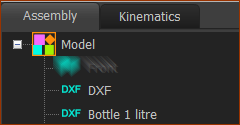
DXF Element in the Assembly-Tree

DXF-Elements in the Assembly-Tree

DXF-Elements in the Assembly-Tree


The DXF-Element - AT-DXFElement - in the Assembly-Tree.

MD17+: The name of the DXF Element is the file-name of the DXF drawing.

Open the DXF-Element dialog:

1.Double-click a DXF-element in the Assembly-Tree.

or

See How to open an element's dialog

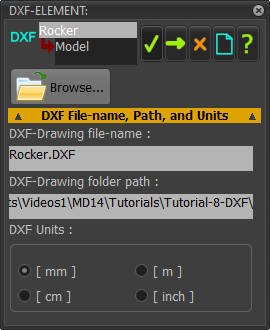
The DXF-Element dialog

DXF-Element dialog

DXF-Element dialog

The DXF-Element dialog shows the:

The DXF-Drawing file-name that the DXF-Element contains.

The Path from which you imported the DXF-Drawing

The Linear Units of the DXF-Drawing


To replace the DXF-Drawing with a different DXF-Drawing:

1.Click the button

2.Find and select a different DXF-Drawing.

3.Click ApplyButton-Small - the Apply button

DXF Units

(mm), (m), (cm), or (inch)

DXF Units that scale the DXF-Drawing.

Select the DXF Units equal to those of the original DXF-Drawing to give a 1 : 1 Scale

Select different DXF Units to change the scale.

Close the dialog:

Click OK-tiny-13-17 to close the DXF-Element dialog.


CAD-Line element

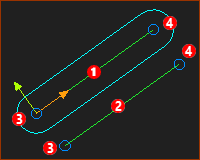
Each Part you add to the model has a CAD-LineRed-14-1b from its start-PointRed-14-3 to its end-PointRed-14-4.

You can add more CAD-Lines to Parts and the Base-Part.

1.Edit a Part or the Base-Part

2.In the Part-Editor, click Geometry toolbar > Add CAD-Line

3.Drag your mouse.

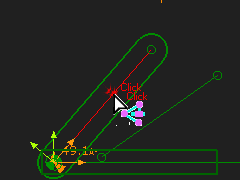
CAD-Line in the graphics-area

CAD-Lines in the Graphic-Area

CAD-Lines in the Graphic-Area

CAD-Lines are usually a different color to other sketch-elements.

CAD-Lines have a Coordinate-System:

Intersection of the XY-axes (0,0) is its start-PointRed-14-3

+X-axis : the direction from its start-PointRed-14-3 to its end-PointRed-14-4.

+Y-axis : +90º from the +X-axis, on the Mechanism-Plane of the Mechanism-Editor.

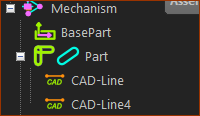
CAD-Line in the Assembly-Tree

CAD-Lines in a Part in the Assembly-Tree

CAD-Lines in a Part in the Assembly-Tree

CAD-Line : in the Assembly-Tree

The CAD-Line is the only sketch-element to show in the Assembly-Tree.

The CAD-Line is a child to a Part.

To edit the CAD-Line

GST-DoubleClick-CADLine

To edit a CAD-Line:

1.Double-Click a CAD-Line in the Part-Editor or the Mechanism-Editor.

or

1.Click a CAD-Line in the Assembly-Tree

2.Right-Click the CAD-Line in the Selection-Window

3.Click Edit element in the shortcut-menu

or

See How to open a dialog

The CAD-Line dialog is now open.


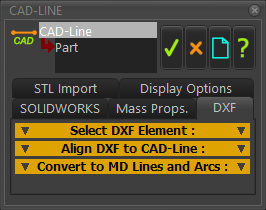
CAD-Line dialog >DXF tab

CAD-Line dialog-box: DXF tab

CAD-Line dialog > DXF tab

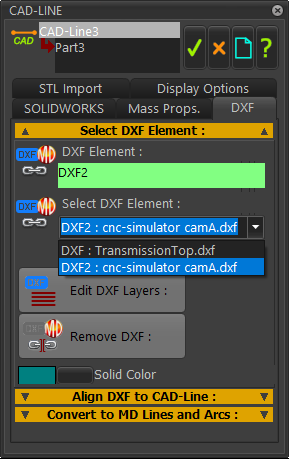
Select DXF Element

GST-Dialog-CADLine-DXFtab-A

Select which DXF-Element : DXF-Drawing you want the CAD-Line to display:

1.Click in the CAD-Line dialog > DXF tab

2.Click the Select DXF element separator

3.Click the Select DXF Element drop-box down-arrow

Each DXF element in the list box has two parts:

DXF element name | the element-name in the Assembly-Tree

DXF-Drawing name | the CAD file-name of the DXF-Drawing

4.Select a DXF element from the list.

After you select a DXF element, the DXF-Drawing shows immediately in the graphics-area.


If you cannot see the DXF-Drawing, try to find it.

Zoom-out if the DXF-Drawing is larger than the workspace.

Zoom-in if the DXF-Drawing is small

Change the background color of the graphics-area.

See: Application Settings dialog > Graphics tab > Graphic colors | Background


There are two buttons

to show/hide DXF Layers

to remove the DXF-Drawing from the CAD-Line.

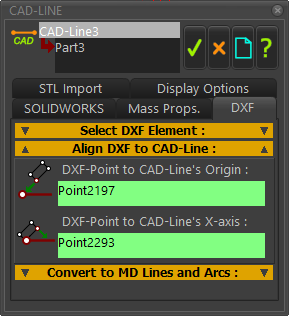
Align DXF to CAD-Line

GST-Dialog-CADLine-DXFtab-Align

Default Alignment of the DXF-Drawing with the CAD-Line

The DXF-Drawing aligns its 0,0 and positive X-axis with the start-Point and positive X-axis direction of the CAD-Line.

The default alignment may be as you intend. However, you can edit the alignment of the DXF-Drawing relative to the CAD-Line.

To re-align the DXF-Drawing:

1.Click the Align DXF to CAD-Line

2.Click the DXF Point at CAD-Line's Origin box - the box should be orange.

3.Click a Point in the DXF-Drawing in the graphics-area

4.Click the DXF Point at CAD-Line's X-axis box - it should be orange.

5.Click a Point in the DXF-Drawing that you want to align with the X-axis of the CAD-Line.

After you click this Point the DXF-Drawing will move to align with the CAD-Line.

To re-align the DXF-Drawing with different Points, do 1 to 4 again.

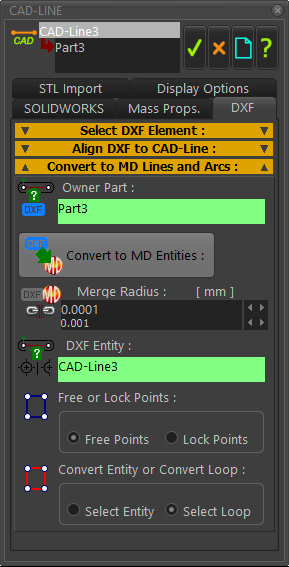
Convert DXF to MD Lines and Arcs

GST-Dialog-CADLine-DXFtab-Convert

To Convert a DXF Entity to a sketch-element:

1.Click the Convert to MD Lines and Arcs

2.Click in the Owner Part box - the box should be orange.

3.Usually, select the Part that is the parent of the CAD-Line

4.Click DXF-Entity box - the box should be orange.

5.Click a DXF Entity (a DXF-Line or DXF-Arc) in the DXF-Drawing

6.As options:

Enable Select-Loop - to automatically find and covert to a sketch-loop from the DXF-Entity(see 5)

Enable Select Entity - to convert to a sketch-element from DXF-Entity(see 5)

Enable Free Points - to allow you to move the start-Points and end-Points of the sketch-element.

Enable Locked Points - to lock the start-Points and end-Points of the sketch-elements that you convert from the DXF-Entity or Entities. You can unlock Points with the Point-Properties dialog.

Edit the Merge Radius value to help make a sketch-loop with DXF-Entities

7.Click the button

Repeat 1 to 7 again and again, to convert more DXF-Entities to sketch-elements.


IMPORTANT:

Each time you want to convert a DXF-Entity to a sketch-element, you must click the DXF entity box to make it orange again, before you click a DXF Entity in the graphics-area.

Notes:

When you press the button, the new sketch-elements do not have a link to the CAD-Line; they have a link to the Part.

Therefore, you can press the button (in the Select DXF Element separator) to remove the DXF-Drawing from the CAD-Line, but the sketch-elements stay with the Part.