Objective of Step 1.2
To learn •how to identify the Mechanism-Editor •how to add a Part •about the other elements and their symbols in the Part element |
Video

Tutorial 1, STEP 1.2: Add a Part
Make sure the Mechanism-Editor is active (and not the Model-Editor)
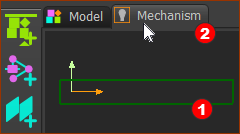 Graphics-area: Mechanism name-tab |
To make sure the Mechanism-Editor is active:
Notes:
|
||
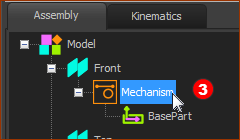 Assembly-Tree: Mechanism element |


Add the Part
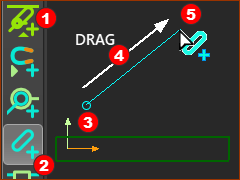 Drag to Add-Part |
STEP 1: Start the Add Part command
The mouse-pointer changes to the Add Part cursor To add the Part ... STEP 2: Drag in the graphics-area Do NOT click the graphics-area before you drag!. If you do, you will need to do Add Part again.
|


Part and its elements in the Mechanism-Editor
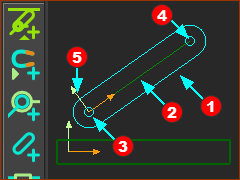 The new Part in the graphic-area |
Elements and their symbols in Parts you add to the model:
Use the CTRL+S keyboard shortcut to save your model. |
Drag in the graphics-area
You use the Drag mouse action to add many element-types. For example, to add a Part, a wire, a Line, an Arc, a Circle, a Blend-Curve, ... Drag is always:
|